I really want to try iOS 27's new Screen Time feature, but Apple won't let me
The new parental controls look fantastic – if you can actually use them
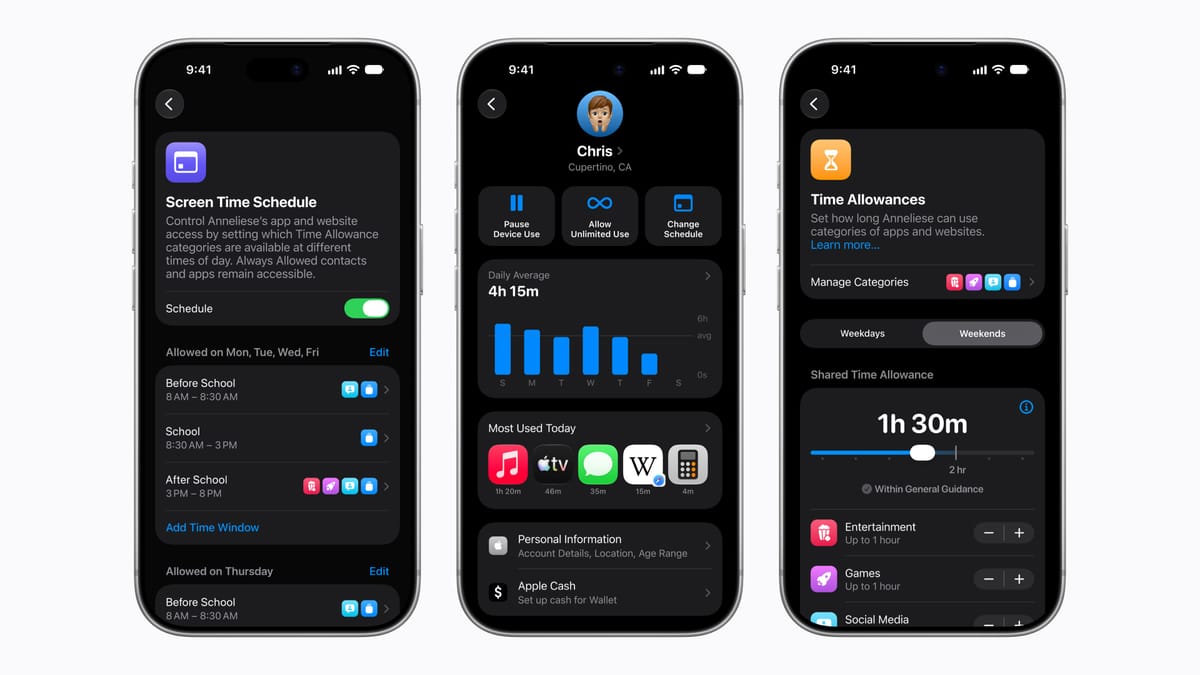
I've been trying to set up iOS 27's new Screen Time parental controls since the update was released, and I'm running into nothing but issues.
To use the new feature, every device enrolled in your Apple Family Sharing group has to be updated to the latest version of Apple's operating systems. (If it's an iPhone, it needs to be on iOS 27, a Mac needs to be on macOS 27, etc.)
It doesn't matter if a member of your family group doesn't use parental controls — as is the case with my wife and daughter — every device needs to be updated.
Where to find a list of Family Devices
You can find a list of devices linked to your family group by opening the Settings app on your iPhone, tapping on Family at the top of the screen (just under your name). Scroll below the list of family members where there should be a button labeled View Family Devices. Select it.
There are two tabs on the View Family Devices page. The first one shows a list of devices that have an update available — meaning they can update to iOS 27 (or whatever) and take full advantage of the new features. The other tab is labeled Legacy Devices. On that page you'll see a list of devices linked to your family group that no longer receive software updates and therefore won't be able to use the new features.
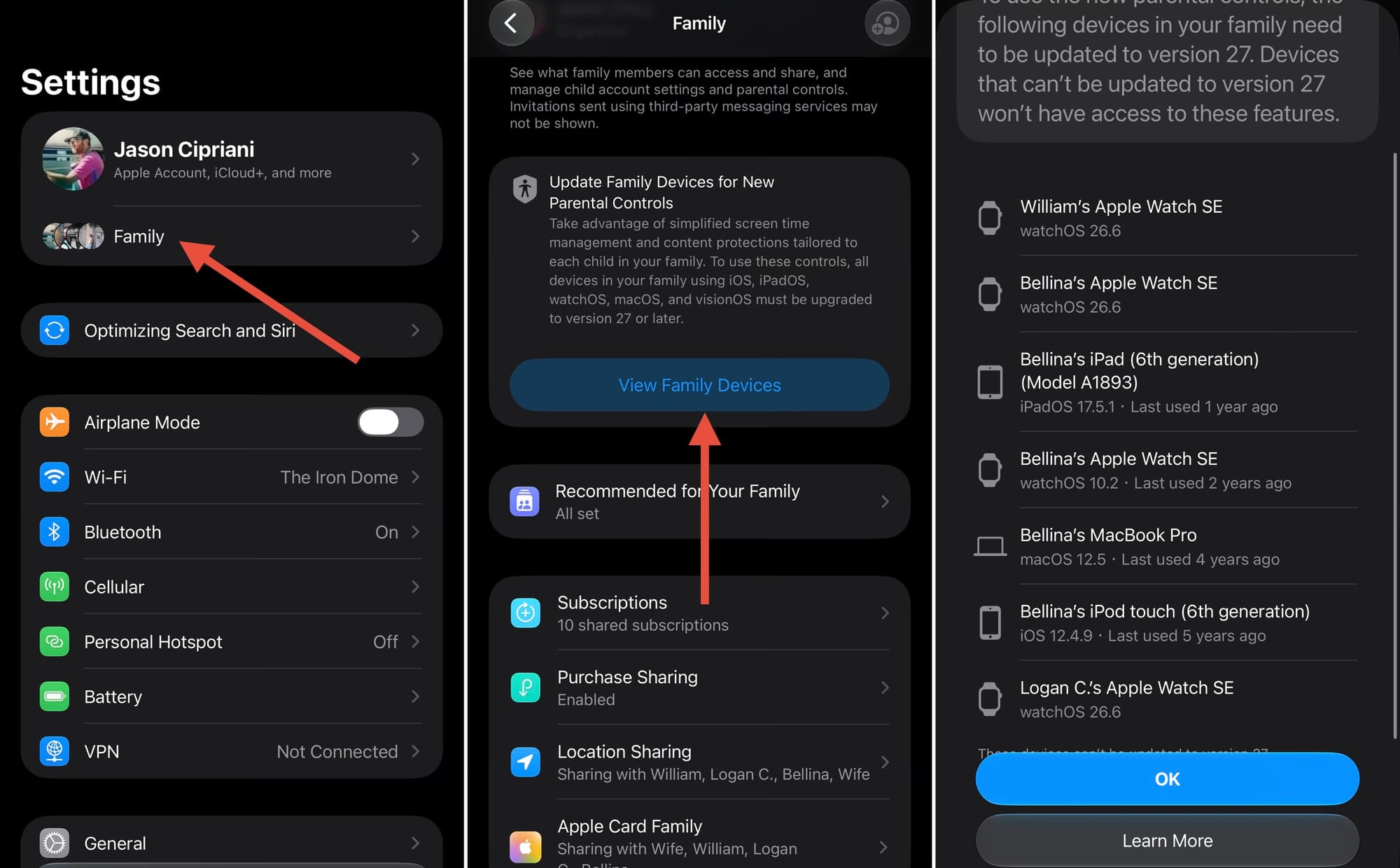
The first time I went to this page, I saw a list of devices that included tablets, phones and watches that we hadn’t had access to in years. The list also included devices we all use daily.
So, the first hurdle I had to get over was convincing my entire family group — which includes myself, my wife, and our three kids — to update not only their iPhones, but every Apple device linked to their account. And if they no longer had access to that Apple device, they had to manually go in and unlink it from their Apple ID.
How to remove Legacy Devices from your Apple ID
You can remove devices from your account by opening the Settings app on your iPhone, selecting your name at the top of the screen, then scrolling to all devices linked to your account. Select a device you want to remove, then select Remove From Account at the bottom of the screen.
After a few days of reminders and strong encouragement, my family and I had cleared every device off of the Update Available tab, after which I assumed we'd be able to enable the new Screen Time experience. I was wrong, of course.
What do I need to do to upgrade to iOS 27’s new Screen Time?
With every device updated, I'm now greeted with the Legacy Devices list and no further instruction.
That list currently has all three second-generation Apple Watch SEs my kids use, all of which are stuck on watchOS 26.6. I'm stumped.
Do I need to buy three brand new Apple Watches to use the new Screen Time feature? Is there a setting I‘m missing somewhere that I need to turn on or disable? I don’t know.
I’ve scoured support forums and knowledge base documents, only to see suggestions of removing all devices (including the ones you still own) from your Apple account, upgrading to the new Screen Time and then signing back into the devices, but that’s a lot of work. And something I surely won’t have any luck convincing my kids to do. Others have completely dismantled their Family Sharing group and set it back up from scratch to get the new feature. There’s zero chance I’m doing that.
So, I guess, I’ll wait. My kids are really looking forward to the new scheduling options that’ll grant them more time on the weekends, but they’ll just have to be patient.
Hopefully it’s just a bug and Apple’s able to fix it remotely, or with a future iOS update. While writing this I updated to iOS 27.0.1 with no luck.
If anyone has a workaround or fix, please comment below or get in touch.