How Firewalla took over my home network
Ditching consumer mesh and unmanaged switches for a full Firewalla stack gave me total visibility — and fixed my smart home gear.
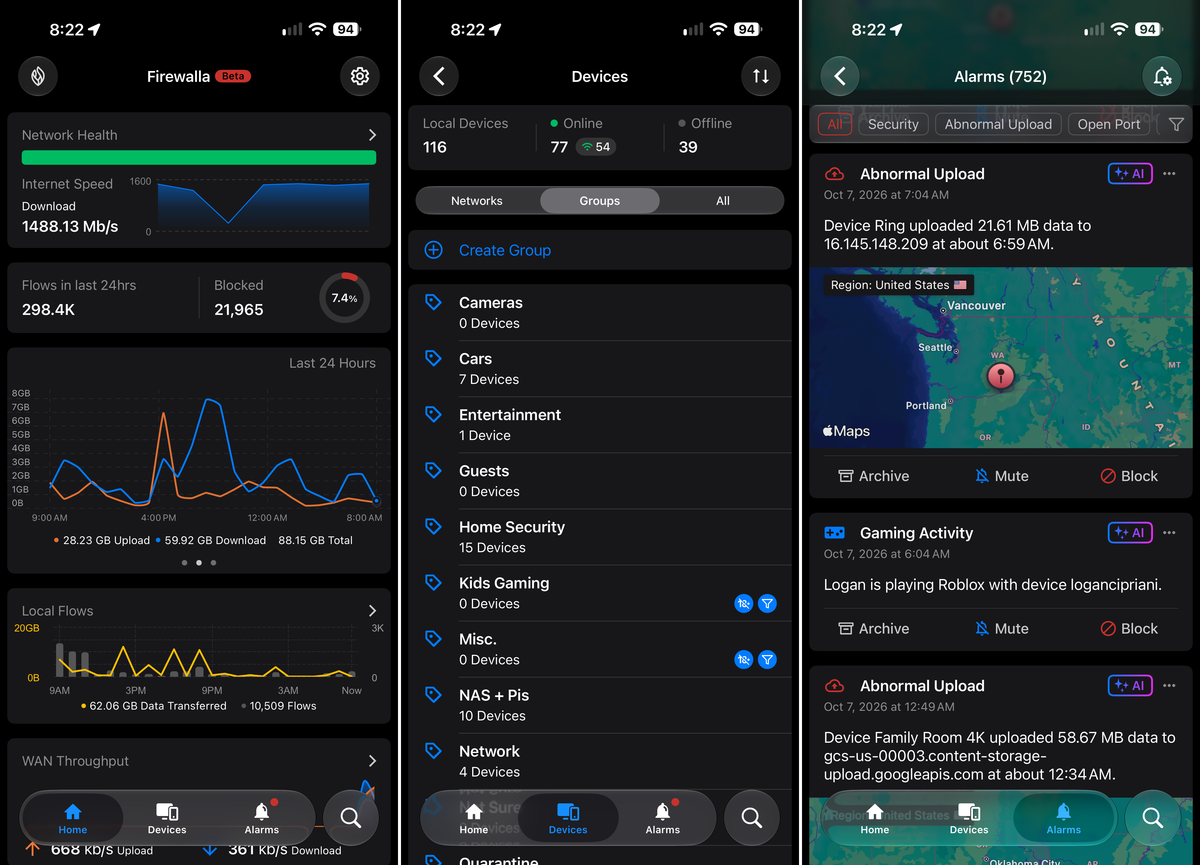
I first heard about Firewalla over six years ago, in 2020, when I reviewed the Firewalla Blue for ZDNet.
The Blue was a small, Raspberry Pi-like device that you connected to your home network, and then it gave you complete insight into what’s happening on your network. It's, essentially, a very small firewall for your home. I admit that’s a very simplified description of what Firewalla did back then, and even more so what it does now.
Since testing the Blue, I’ve used nearly every device in the company’s lineup. I’ve reviewed the Purple and traveled with it for years, the Gold watched over my home network for awhile, and I even recently tested and included Orange in my best Wi-Fi router roundup for The Strategist.
For the last three years, the Firewalla Gold Plus has served as the centerpiece of my entire home network. More recently, I replaced the Eero 7 Max mesh system with three of Firewalla’s AP7 access points, and added the Firewalla Switch X to the mix.
Instead of a patchwork network with unmanaged switches and mesh Wi-Fi systems in bridge mode that often cripples its capabilities, my home network is powered by Firewalla, and I love everything about it.
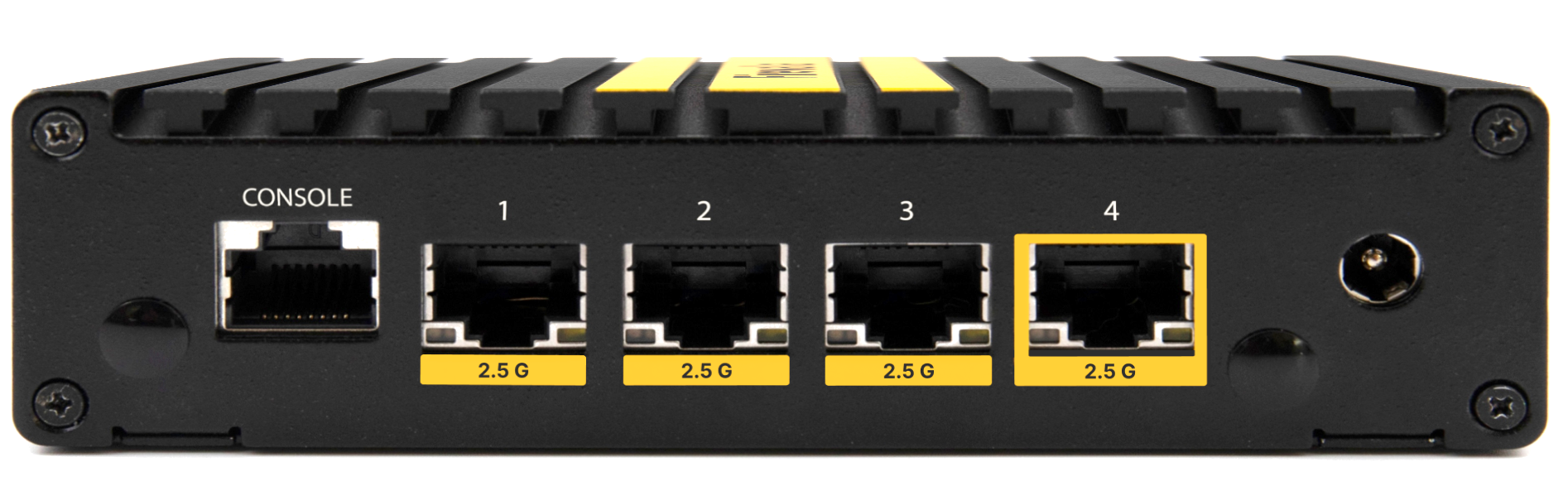
The brain: Firewalla Gold Plus
The Firewalla Gold Plus, like the rest of the company's core lineup, acts as a firewall for your home network. During my time using the Gold Plus, I've run it as a dedicated router with complete control and oversight into my network, and in bridge mode, which leaves a few blind spots in traffic monitoring.
I originally set it up as my main router, putting my Eero mesh Wi-Fi system into bridge mode, and letting Firewalla do its thing. Eventually, curiosity got the best of me and I decided to move Firewalla to bridge mode, and let Eero’s mesh system double as my home router. Doing so enabled extra Eero features, such as security, ad blocking and device controls.
But, this meant that devices connected directly to the main Eero access point didn’t go through the Firewalla, leaving a big gap in its monitoring and alerts. I didn’t realize that was the case at first, however I later learned my kids were using it to skirt past parental controls, so I had no choice but to put Firewalla back into router mode. Which, honestly, is for the better anyways.
Speaking of parental controls, Firewalla has the best network-based parental controls I've ever used. Not only can I monitor what my kids do on our home network, but with the built-in VPN feature, whenever they leave the house their phones stay connected and I can keep tabs on what they're doing. Granted, they could very easily turn off the VPN and get around it — but they've told me more than once they prefer to stay on it because I have Pi-hole set up and blocking ads.
I get real-time alerts whenever someone is streaming YouTube or gaming while they're supposed to be in class. In addition to alerts, I have strict content filters applied to all of their devices that block sites that include adult content or gambling, and set time limits for specific apps and websites.
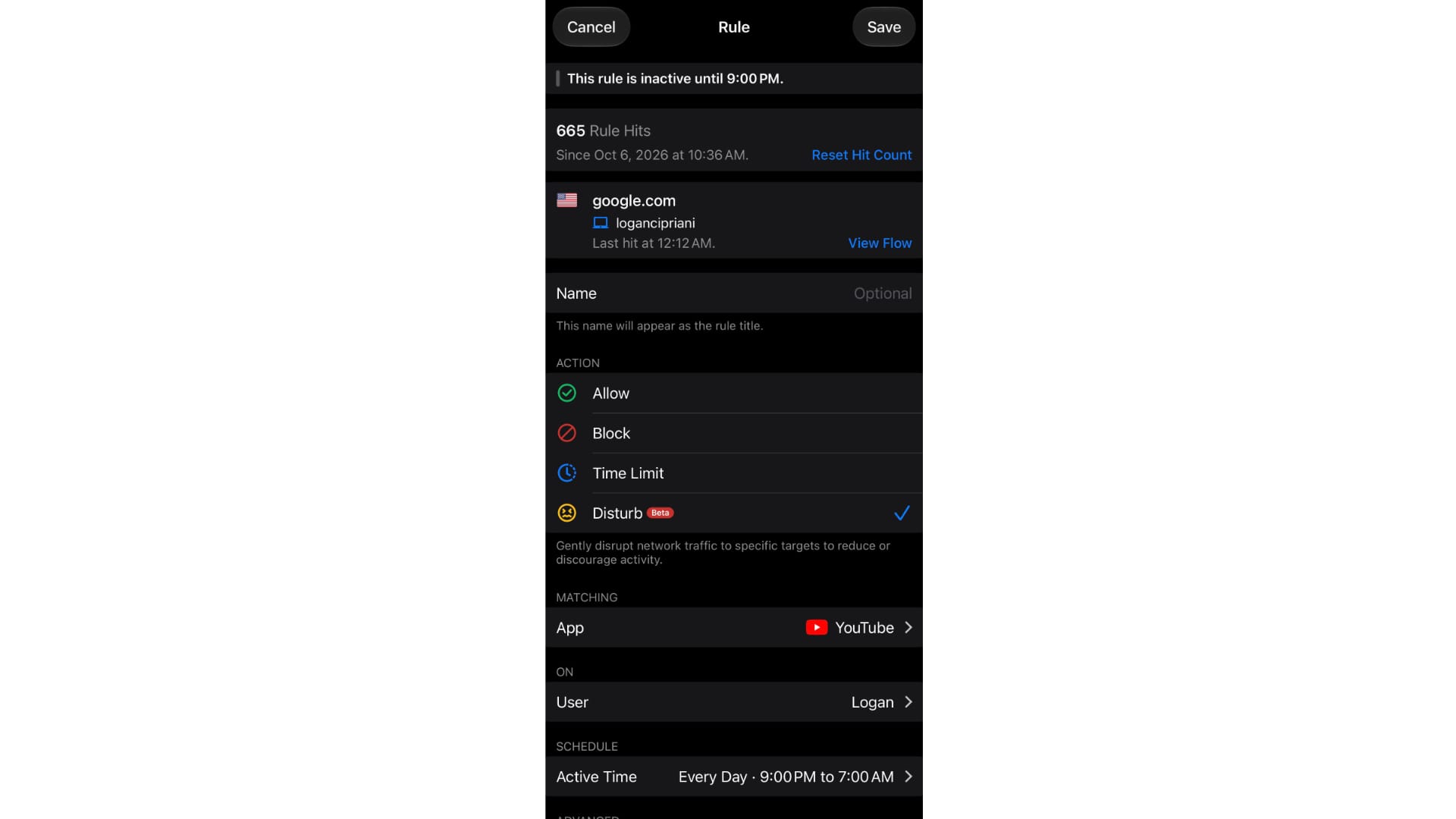
My favorite enforcement tool, however, is the Disturb feature. When enabled, it makes it look like we're having internet issues by deliberately causing videos to buffer and video games to lag.
Right now, I have Disturb set to be super annoying whenever my kids are watching YouTube on their devices later in the evening. The goal here isn't just to be annoying, it's to force them to quit mindlessly scrolling and do something more valuable with their time.
The Disturb feature is something I've never told my kids about, and I certainly hope they aren't reading this. I do get a chuckle, however, every time they ask me if I've made any changes to the Wi-Fi or if I'll look into why it's not working.
As I said earlier there are so many Firewalla features I don't use, I don't even know where to start; most of it is super intimidating and overwhelming for me. Features like VLANs and network segmentation are just things I can't wrap my head around, even though I've repeatedly tried.
My original plan to learn about segmentation was to create a network only for my smart home devices, but then I ran into issues with accessing them from within my home network, so I gave up.
But within the last year or so, Firewalla added a feature that automatically identifies smart home gadgets, learns the domains it normally interacts with, and then starts blocking all other domains, all on its own. It’s nothing I had to set up or even manage. I could if I wanted to, I haven't had any issues with it.
The most complex task — for me, at least — I’ve done was to set up a backup internet provider that activates when our Xfinity connection fails. When I was testing the Eero Signal, which provides cellular backup internet to your home network, I had to figure out a way around the fact that Signal doesn't work if your Eero network is in bridge mode. After some back and forth with Eero and Firewalla support, I got creative.
With their respective help, I figured out how to set up the Signal as a second ISP service, plugged directly into the Gold Plus, that would immediately kick in the moment Xfinity stopped working.
It was awesome.
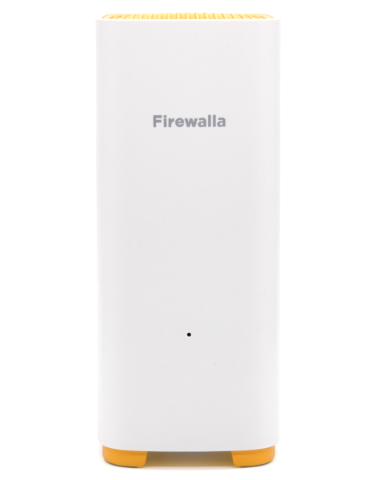
The wireless layer: Firewalla AP7
Even though I was happy with the Eero Max 7’s range, ease of use, speed and overall performance, I grew frustrated with managing a mesh system in bridge mode. Changing settings was a lengthy process, consisting of multiple reboots, and it just wasn’t fun managing.
When Firewalla announced the AP7, I was intrigued. So when the Firewalla team reached out and asked if I’d be interested in testing the AP7, I jumped at the chance.
Three units arrived in early June, and I immediately swapped out the Eero hardware of the AP7 access points. It was a one-for-one swap. I placed them in the same spot that the Eero’s had lived for a few years, with the same wired backhaul.
That same day I noticed that a few random smart devices — my Tesla Wall Connector, myQ garage door controller, and a Meross light switch — all connected to the network and stayed connected. It wasn’t uncommon for me to try and access one of those devices only to discover they were offline. It makes no sense to me as I had other Meross and myQ devices that stayed connected. I chalked it up to smart home devices being dumb. Now I know that it was the wireless network.
Roughly 24 hours after install, my son let me know that the new Wi-Fi was horrible in his room. I ran some tests, verified that it wasn’t a rogue Disturb mode rule, and double-checked which access point his PC was connected to. Even though his PC was connected to the closest AP, in the basement, the signal wasn’t strong and his connection was suffering.
To my surprise, I was able to limit which AP his PC connected to in the Firewalla app. So I did just that — telling Firewalla to only allow his PC to connect to the upstairs AP. The problem was that the access point is on the complete opposite side of our ranch-style home. It can’t go any further. As you’d imagine, it only made things worse.
And so, I decided to move the upstairs access point to the middle of the house where I had a dedicated Ethernet run connected to an Apple TV, and that fixed it. A solid connection and faster speeds than he’d previously experienced are now the norm.
I’ve used the ability to limit which access point a device can connect to to further optimize my network. My office is in a separate building that has AP7. So I went through and restricted every device that lives in my office from connecting to either AP7 in the house, improving their reliability. Such a simple but useful feature.
My biggest gripe — and one I’m still wrestling with — is that one of the AP7’s best features, Personal Pre-Shared Key (PPSK), requires disabling the 6GHz band entirely. PPSK lets you assign unique Wi-Fi passwords to individual users or devices, automatically funneling them into dedicated Firewalla profiles and rule sets the moment they connect. Giving each of my kids their own password means their devices instantly inherit their specific content filters and schedules without any manual work on my part, and the same setup works for isolating guest hardware or smart home gadgets.
It’s a brilliant way to streamline network management, which makes having to surrender the 6GHz radio to use it a tough pill to swallow. That said, I’ve kept an eye on the number of my devices that actually use that band and the number is in the single digits. So it may be worth the trade-off.
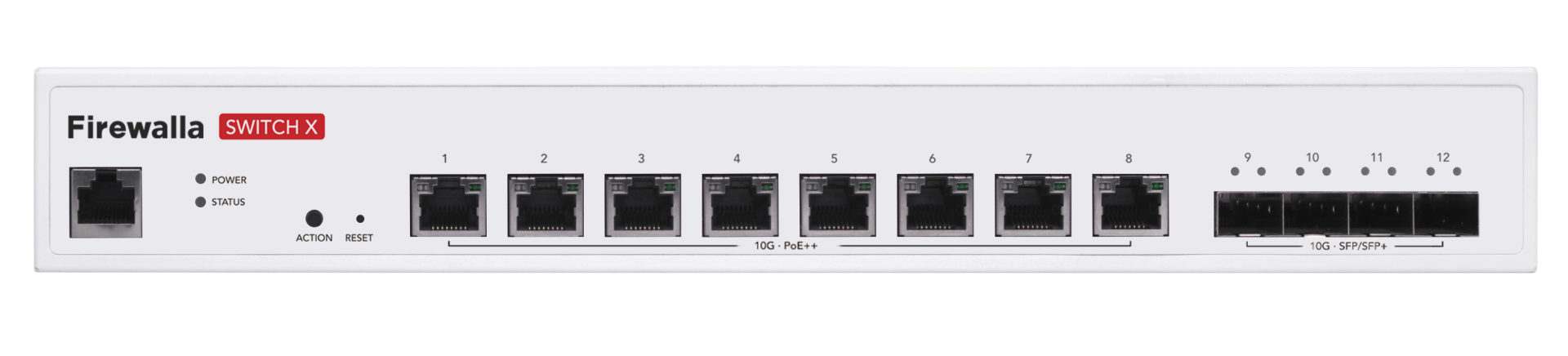
The backbone: Firewalla Switch X
The latest piece of gear I added to my network is the Firewalla Switch X. Prior to that, I never gave Ethernet switches much thought outside of looking for the cheapest one with the most ports.
The idea of a managed switch was foreign to me. However, after installing the Switch X a couple of months ago and letting it manage traffic across my entire wired network, I’d love this much insight from every switch I have installed at my house. While that’d financially ruin me, it’s fun to think about.
Basically, the Switch X provides further insight into what’s connected to what in my wired home network, which was previously a blind spot. I now have a complete picture all within the same app, where I can also monitor port performance instead of trying to guess what the blinking lights next to each jack meant.
It has 8 total ports with PoE support to provide power and data via an Ethernet connection. I don’t have any PoE devices close enough to the switch to test it, but I was able to easily disable PoE on each port with a few taps in the Firewalla app.
Firewalla’s ecosystem is complete
Six years after plugging in that first little blue box, it’s wild to see Firewalla running pretty much every inch of my house. Buying into this full hardware trifecta definitely isn't cheap. But ditching the patchwork setup of consumer mesh in bridge mode and blind unmanaged switches gave me a level of control I didn't know I was missing.
If you want enterprise-grade visibility and security without having to manage it like a second job, going all-in on Firewalla is worth every penny.